No products in the cart.

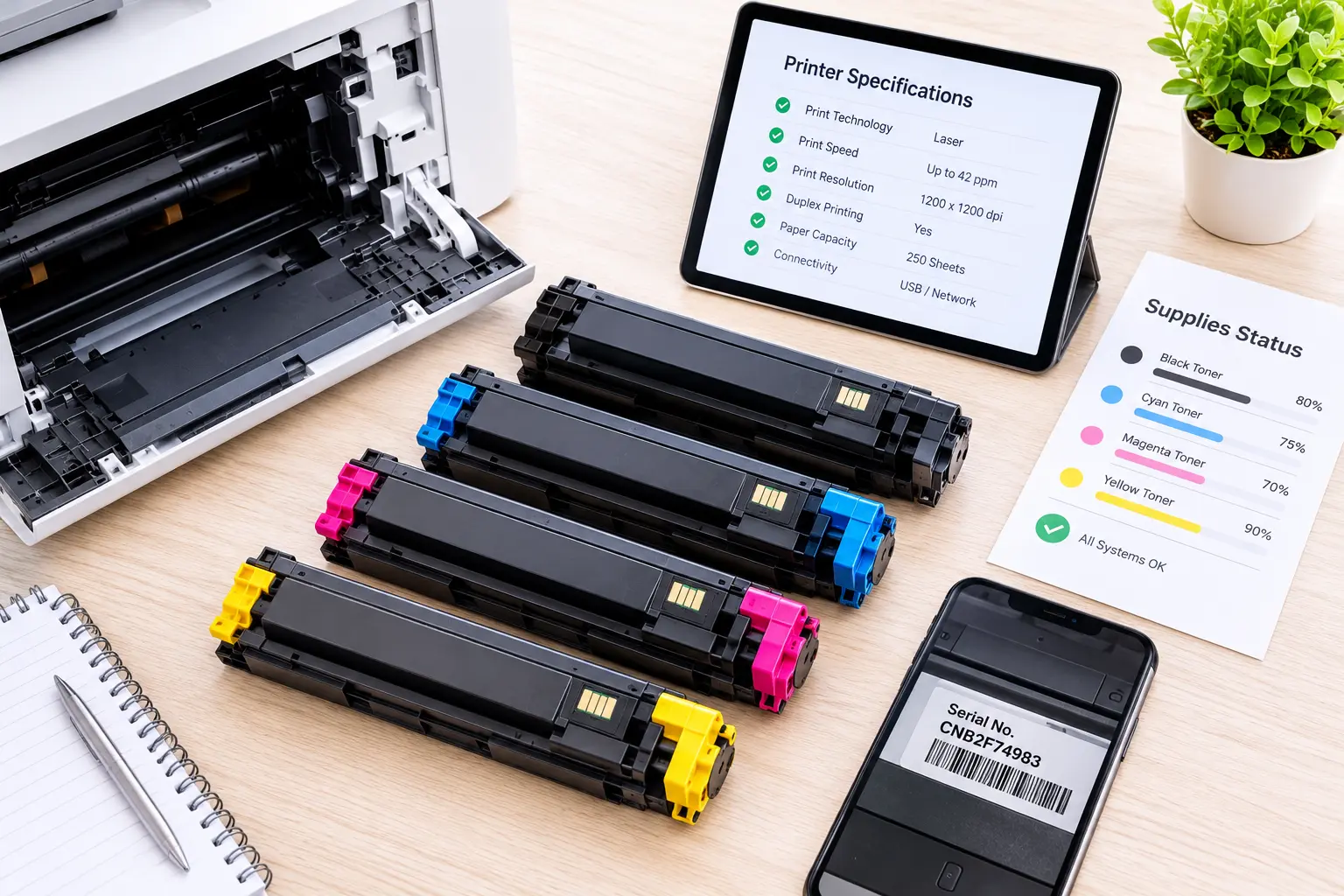
Quick Summary: To order the right laser toner on the first try, verify five exact attributes: your complete printer model suffix, the OEM cartridge code, the color channel,

No products in the cart.
Quick Summary: To order the right laser toner on the first try, verify five exact attributes: your complete printer model suffix, the OEM cartridge code, the color channel, the regional firmware designation, and the ISO yield variant. Checking the sticker inside your printer bay or printing a supplies status page removes guesswork and prevents firmware lockout errors.
Ordering replacement laser supplies sounds simple until a sealed box arrives, fits halfway into the bay, and refuses to click into place. Even worse, a cartridge might slide in smoothly only to trigger a persistent “Incompatible Supply” alert on your printer screen. Learning how to find toner cartridge number details properly takes less than two minutes and protects your workflow from unnecessary downtime. Instead of relying on broad brand searches or partial model names, you can follow a structured five-field verification method. Let us walk through how to read your machine, decode manufacturer part numbers, and confirm exact hardware compatibility before placing an order.
Modern laser printers rely on tight mechanical tolerances and encrypted digital handshakes between the machine and its consumables. Buying a cartridge based solely on the printer series name often leads to hardware mismatches for three specific engineering reasons:
If you are unsure whether your office machine uses dry laser powder or liquid ink cartridges, reviewing a quick office admin guide on ink vs toner helps clarify how electrostatic drums and heated fusers differ from inkjet printheads before you inspect the internal bay.
“More than 60 percent of supply return requests happen because a buyer drops the trailing suffix letters from the printer chassis or copies the internal code off a factory starter cartridge instead of the retail replacement number.” — Print Fleet & Consumables Operations Lead, Supplies Hub
Hit pause on automatic reordering and run a fresh toner cartridge model lookup whenever your printing environment changes. Certain operational triggers create hidden traps for office buyers:
You do not need technical manuals or specialized software to locate your printer model cartridge number. Use any of these four direct methods to pull exact hardware identifiers straight from your equipment:
Power on your printer, open the front or top access door, and pull the existing cartridge straight out using its center handle. Look across the top spine of the cartridge shell for a bold alphanumeric code printed on the manufacturer sticker, such as CF258A, TN-760, or 057. Keep in mind that if your machine still holds its original factory starter unit, the label may show a setup code rather than the standard retail replacement SKU.
Manufacturers print the commercial product family on the front bezel near the control panel, such as “LaserJet Pro M404” or “imageCLASS MF445”. However, the complete model designation lives on a white compliance sticker on the rear panel or inside the front toner access door. Always record the full string, including trailing letters like n, dn, dw, or fdw, alongside the hardware serial number.
Every networked or desktop laser printer can generate a diagnostic report showing exact consumable part numbers. On the printer control panel, navigate to Reports, Information, or Settings, and select Supplies Status Page or Configuration Report. The printed sheet lists the exact machine model, installed firmware date, regional code, and the exact OEM cartridge numbers recognized by the printer motherboard.
If you are away from the physical machine or ordering remotely for a colleague, check the installed printer driver on your computer:
Once you have gathered your machine details, run a complete toner compatibility check across five mandatory fields before submitting your cart. Skipping even one field leaves room for a mismatched shipment.
Never truncate a printer model name. Trailing suffix letters describe hardware features like automatic duplexing (d), Ethernet networking (n), wireless connectivity (w), or fax capability (f), and they occasionally denote different internal engine revisions. For instance, an HP LaserJet Pro M404dn and an HP LaserJet Pro M428fdw share the same cartridge family, whereas a Brother HL-L2350DW uses completely different toner architecture than an older Brother HL-L2340DW. Always match the complete model string character for character.
Major brands assign two styles of identifiers to every cartridge: a short family number printed in large font on the retail box, and a full OEM engineering part number used in procurement systems. During your lookup, verify that both numbers align:
When browsing a structured catalog of original printer toners and inks, matching both the short family code and the full OEM reference guarantees you are looking at the exact supply engineered for your print engine.
Monochrome laser printers hold a single Black (K) toner cartridge. Color laser printers require four separate color channels installed side by side: Black (K), Cyan (C), Magenta (M), and Yellow (Y). Within a single color series, the base model number stays similar while the final digit or letter changes to indicate the specific pigment channel. For example, in the HP 206A color series, W2110A is Black, W2111A is Cyan, W2112A is Yellow, and W2113A is Magenta. Installing a Cyan cartridge into a Magenta slot is blocked mechanically, so double-check which color channel your supplies status screen actually flagged as empty.
One of the most overlooked causes of cartridge rejection is regionalization. Printer manufacturers divide global distribution into geographic zones such as North America (USA/Canada), EMEA (Europe, Middle East, Africa), and Asia-Pacific and program printer firmware to accept only cartridges carrying matching regional chips. A Brother HL-L2350DW sold in the United States requires TN-730 or TN-760 cartridges, while the exact same machine chassis sold in Europe requires TN-2410 or TN-2420 cartridges. If you source supplies online from cross-border sellers without checking the region code, your printer will reject the chip immediately upon installation.
Once physical fitment and regional compatibility are confirmed, select the capacity and packaging configuration that fits your print volume. Cartridge yields are measured under standardized ISO/IEC 19752 (for monochrome black cartridges) and ISO/IEC 19798 (for color CMYK sets) testing protocols based on 5% page coverage:
To see how the Five-Field Order Check works in practice, review these verified specifications across five widely deployed office laser printers in North America:
| Printer Model (Field 1) | OEM Cartridge Code (Field 2) | Color (Field 3) | Region (Field 4) | Pack and Yield Variant (Field 5) |
| HP LaserJet Pro M404dn | CF258A (HP 58A) / CF258X (HP 58X) | Black (Monochrome) | North America (USA) | Single Pack: Standard (~3,000 pages) / High Yield (~10,000 pages) |
| Brother HL-L2350DW | TN-730 / TN-760 (Separate Drum: DR-730) | Black (Monochrome) | North America (USA) | Single or 2-Pack: Standard (~1,200 pages) / High Yield (~3,000 pages) |
| Canon imageCLASS MF445dw | 057 (3009C001) / 057H (3010C001) | Black (Monochrome) | North America (USA) | Single Pack: Standard (~3,100 pages) / High Yield (~10,000 pages) |
| HP Color LaserJet Pro M255dw | W2110A–W2113A (HP 206A) / W2110X–W2113X (HP 206X) | Black, Cyan, Magenta, Yellow | North America (USA) | Single Color or 4-Pack: Std (~1,350 K / ~1,250 CMY) / High (~3,150 K / ~2,450 CMY) |
| Xerox VersaLink C405 | 106R03500 (Std) / 106R03512 (High) / 106R03524 (Extra High) | Black (Plus C/M/Y equivalents) | North America (USA) | Single or 4-Pack: Std (~2,500 pages) / High (~5,000 pages) / Extra High (~10,500 pages) |
Notice how each row locks down all five variables simultaneously. Even when a single printer supports multiple yield tiers like the Xerox VersaLink C405 accepting standard, high, and extra-high black cartridges the physical shell dimensions remain identical while the internal toner volume and OEM SKU change.
Before clicking checkout, run through a final 15-second pre-order audit. Confirm that your selected cartridge matches your full printer suffix, carries the right regional designation, and separates toner hoppers from separate imaging drums if your hardware uses a two-piece assembly. If you are weighing genuine brand-name supplies against third-party alternatives for older office machines, consult a dedicated buyer checklist comparing original vs compatible toner to verify STMC testing compliance and smart chip firmware stability.
Still staring at a scratched cartridge label, a faded serial sticker, or an unfamiliar error code on your control panel? Skip the guesswork and let a print supply specialist verify the match for you. Snap two clear photos with your phone, one of the model stickers on your printer and one of your existing cartridge or open toner bay and share them with our team through the Supplies Hub storefront. Our specialists will run a human verified toner compatibility check and point you directly to the exact cartridge your printer needs.

SEO & Content Marketing Specialist focused on building search-driven brands through strategic content, organic growth, and audience-first storytelling. Skilled in modern SEO, content strategy, and creating scalable digital experiences.
SEO & Content Marketing Specialist focused on building search-driven brands through strategic content, organic growth, and audience-first storytelling. Skilled in modern SEO, content strategy, and creating scalable digital experiences.
Related Blogs
Quick Summary: To order the right laser toner on the first try, verify five exact attributes: your complete printer model suffix, the OEM cartridge code, the color channel,
Quick Summary: Learning how to choose a paper shredder for a Saudi office depends on four measurable specifications: DIN 66399 security level, sheet pass capacity, motor duty cycle,
Quick Summary: Comparing original vs compatible toner comes down to four measurable factors: verifiable supply origin, serialized batch traceability, standardized ISO/IEC page yield, and clear hardware support terms.